Connecting your Instagram page with your Facebook page will allow your dripflow account to work with both platforms.
In this example we will be using the Dripflow.io pages.
Instructions to connect Instagram & Facebook
1. Log into Facebook & select your page (top right)
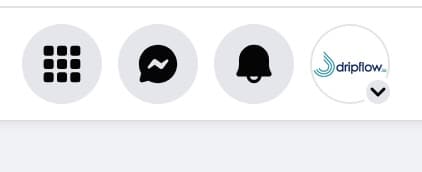
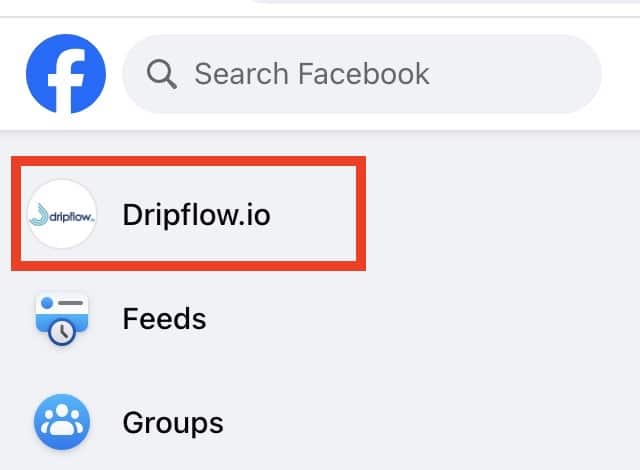
2. Click your profile image (top left)
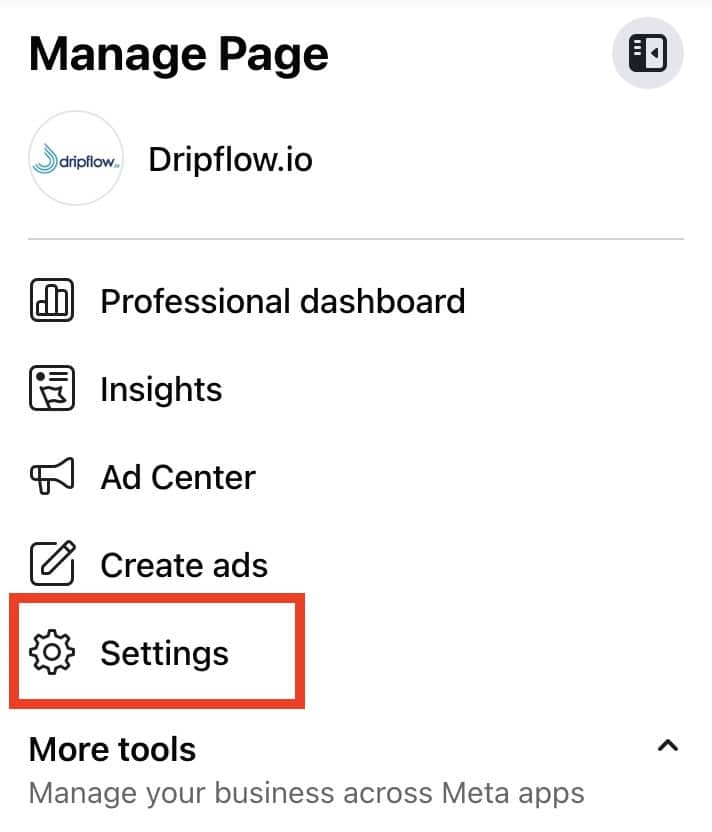
3. Click ‘Settings’
4. Scroll down to ‘Permissions’ (left) & click ‘Linked Accounts’
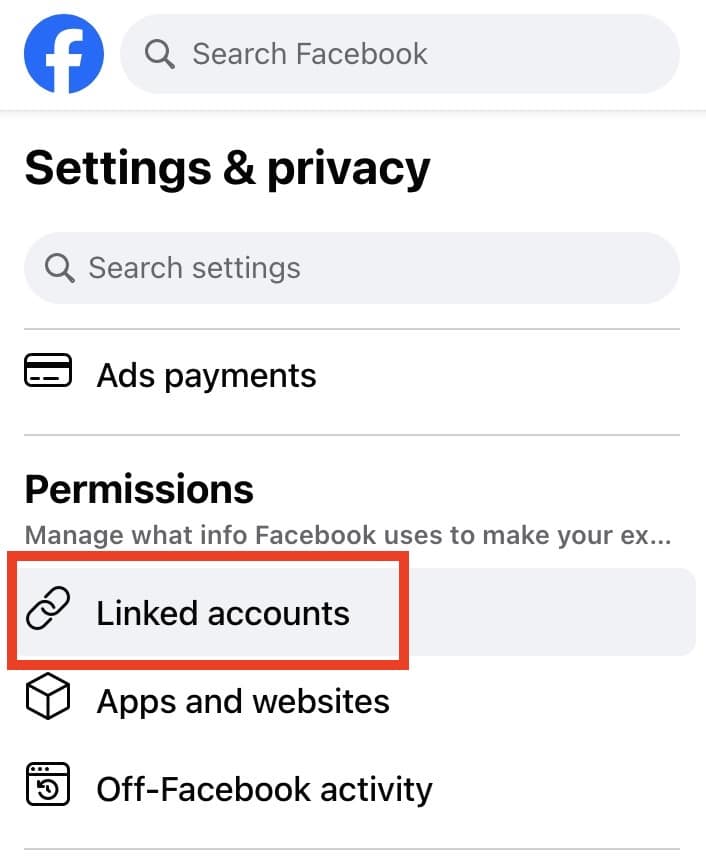
5. Press ‘View’ next to instagram

6. Press ‘Connect Account’
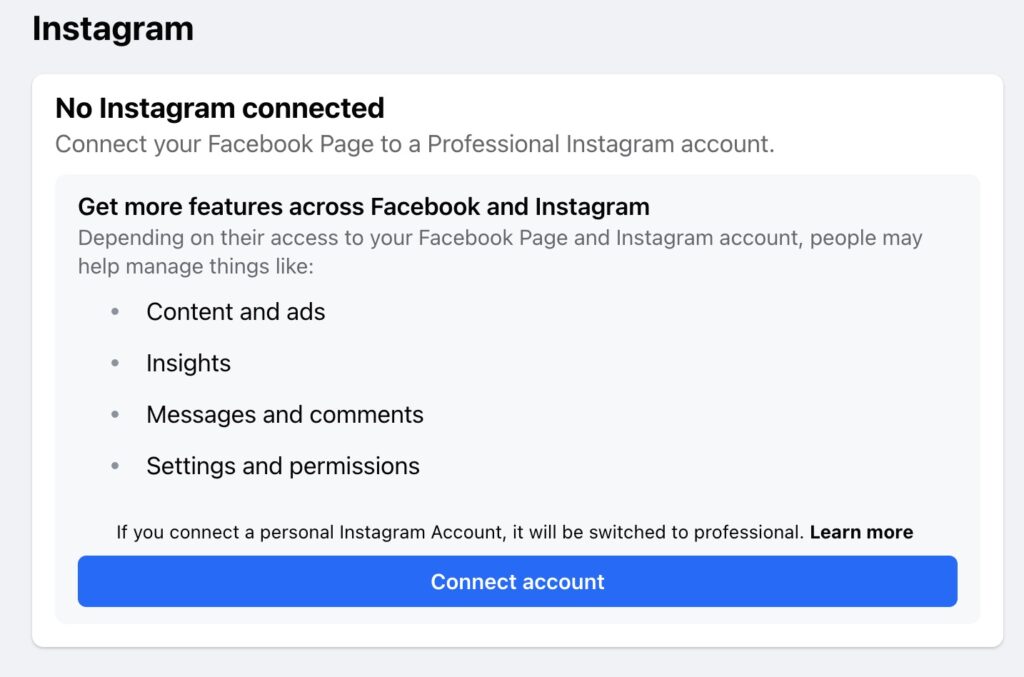
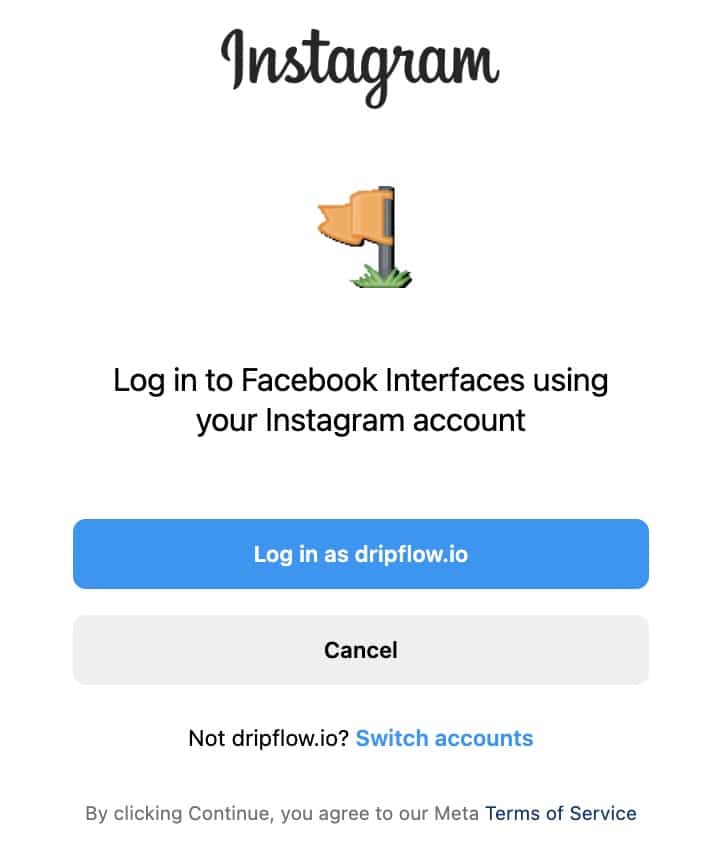
7. Log in to your Instagram account
This login screen will show you the page you are currently logged in to instagram with, to proceed click the blue login button.
If this is not the correct page you can click the light blue ‘Switch accounts’ text at the bottom & use a different account.
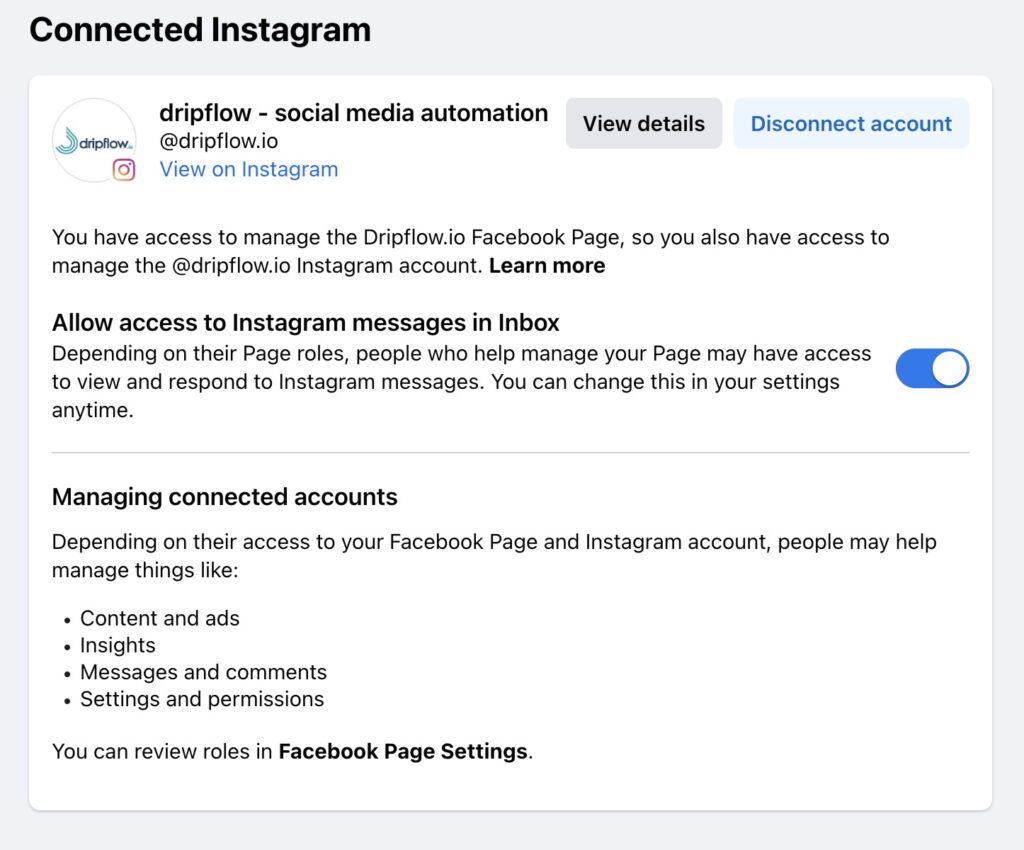
8. Connected
You should now see a screen similar to the below
Test your connection using Dripflow
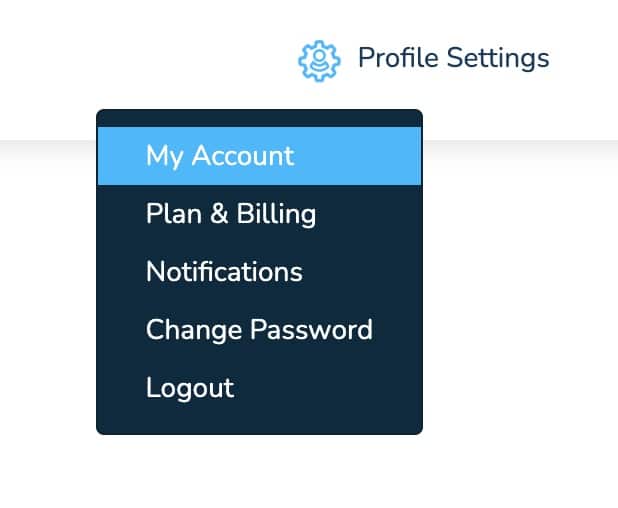
1. Log into dripflow & click ‘Profile Settings’ (top right) > My Account
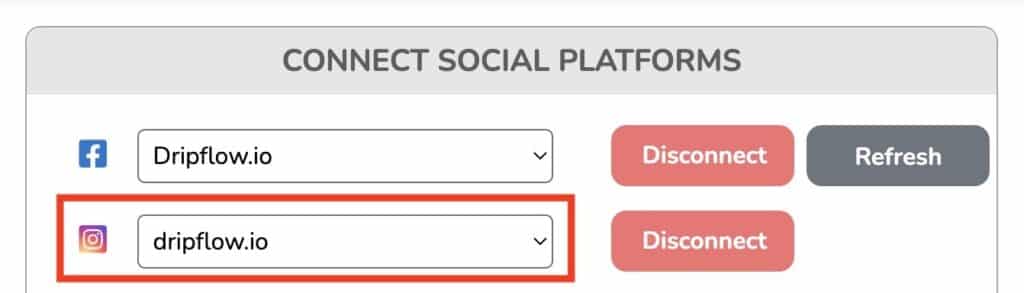
2. Use the dropdown next to Instagram to select your page
Tip: As default the first item in the dropdown will state ‘None selected’, be sure to press on the dropdown to see a list of available pages.
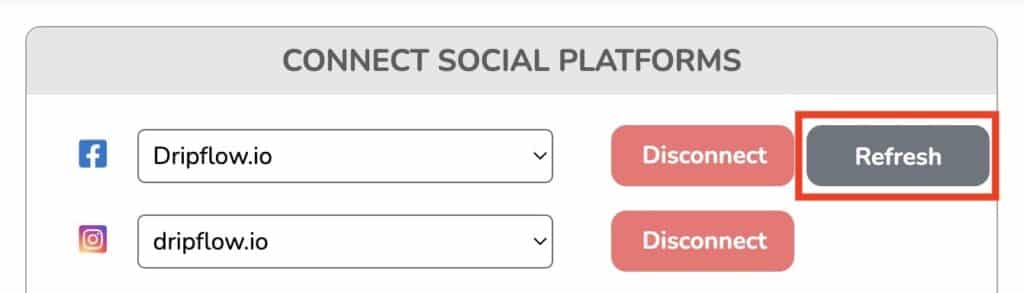
3. If you still do not see Instagram in the dropdown, refresh your Facebook connection
Click refresh & follow the steps to reconnect your Facebook page to dripflow. Be sure to select all pages, accounts & permission which dripflow is requesting. If you still have issues after this, contact our team via hello@dripflow.io
New to dripflow?
Try it now on our 14 day free trial.