
Overview
In this article you will get instructions on how to import and create review graphics from your Facebook page.
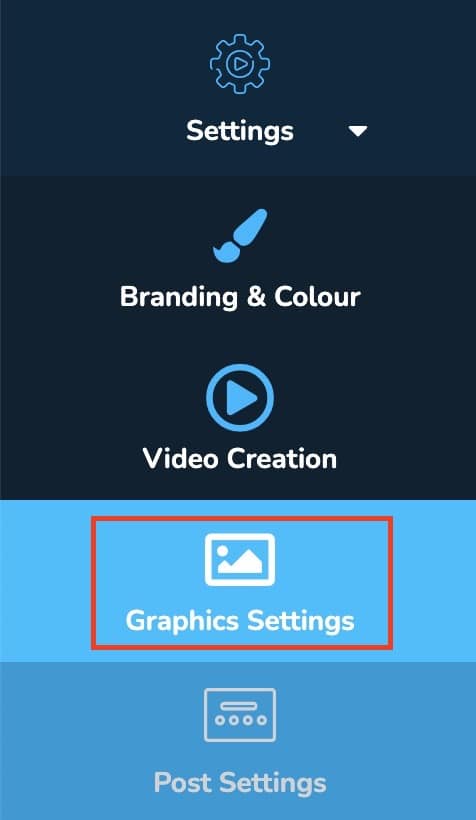
1. In the sidebar, select ‘Settings > Graphic Settings’
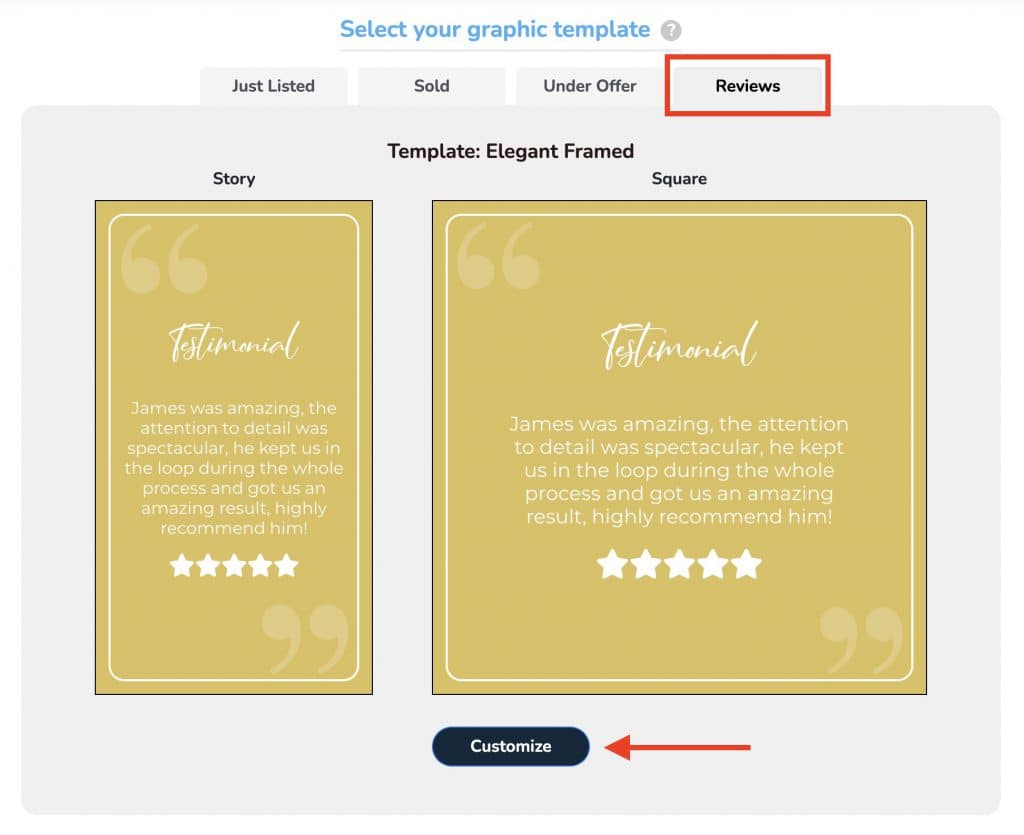
2. Click the ‘Reviews’ tab and then ‘Customise’ button
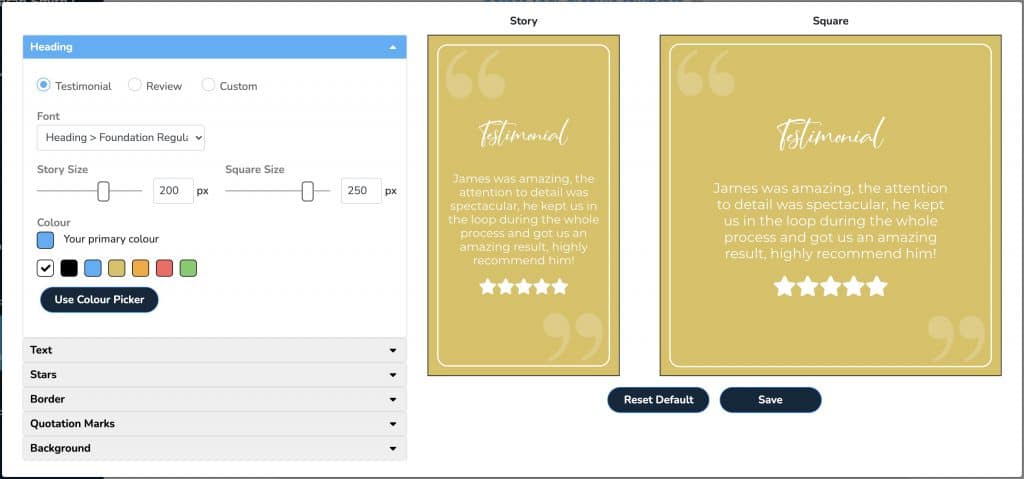
3. Customise your design
When you’re done, hit ‘Save’
4. In the sidebar, click on ‘Reviews’

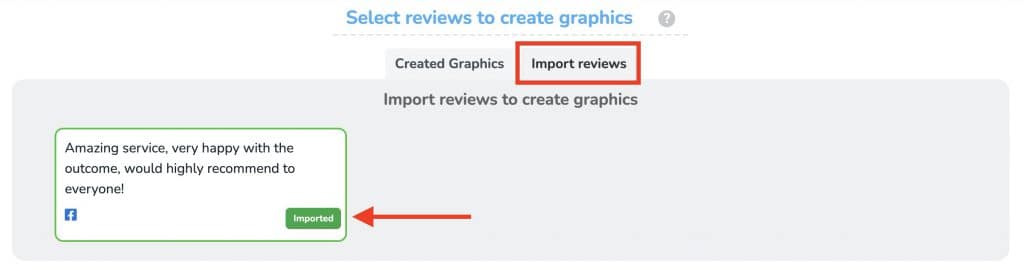
5. Select the ‘Import reviews’ Tab, your reviews/recommendations should appear here.
Click import on the reviews you want to create graphics for. The button will change to ‘imported’ when the review has been imported.
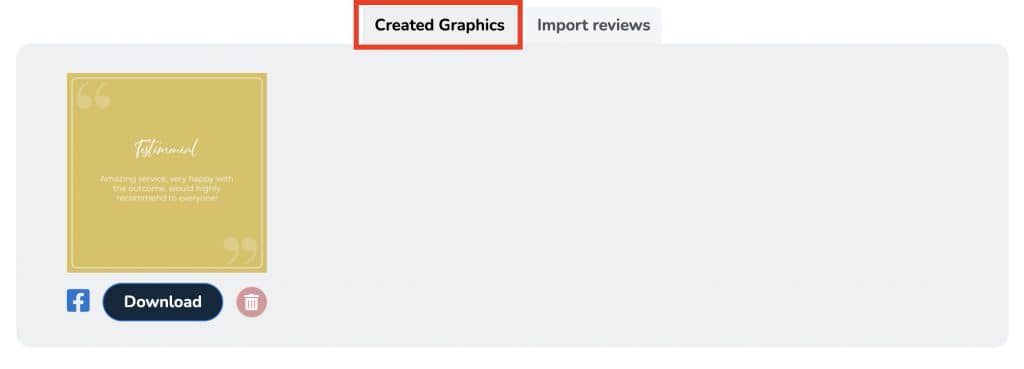
6. Select the ‘Created Graphics’ Tab & press download to download both the story and feed graphics.
Important note; We have purposely not created an automatic posting feature for this module in order to help you quality control. In the future we will introduce options for you to manually enable posting, based on things aspects like star rating, or manual approval. For now you are able to manually import, download and post these yourself.
Our team is also working on integrating ‘Google My Business’ for review data imports and graphic creation.