Dripflow
All posts

How to

Updating Facebook permissions analytiics

by Dripflow

Overview

When reconnecting FB, you may have a shorter journey than the below steps, as FB may show you the new permission request straight away. You need to make sure you select all the relevant options available.

1. Click ‘Profile settings > My Account’ top right
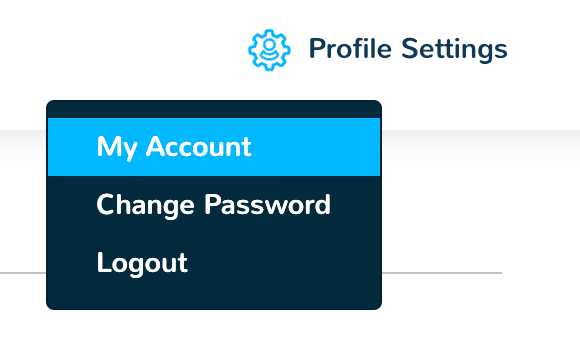
Dripflow Profile Settings menu with My Account selected

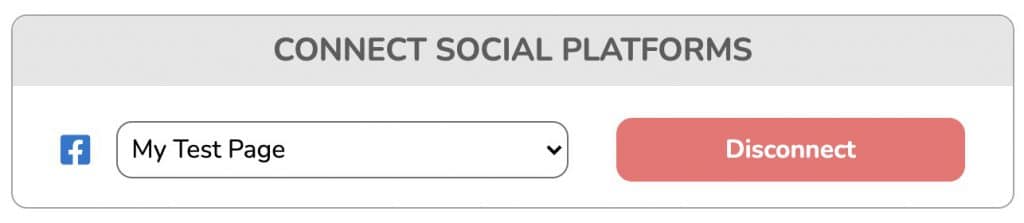
2. Click ‘Disconnect’

Connect Social Platforms panel with a Disconnect button for the Facebook page

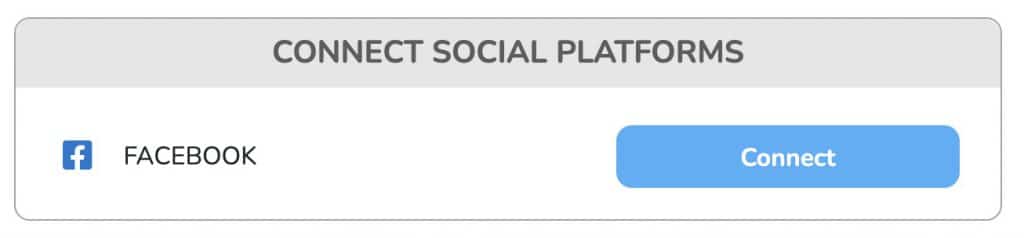
3. Click ‘Connect’

Connect Social Platforms panel with the Facebook Connect button

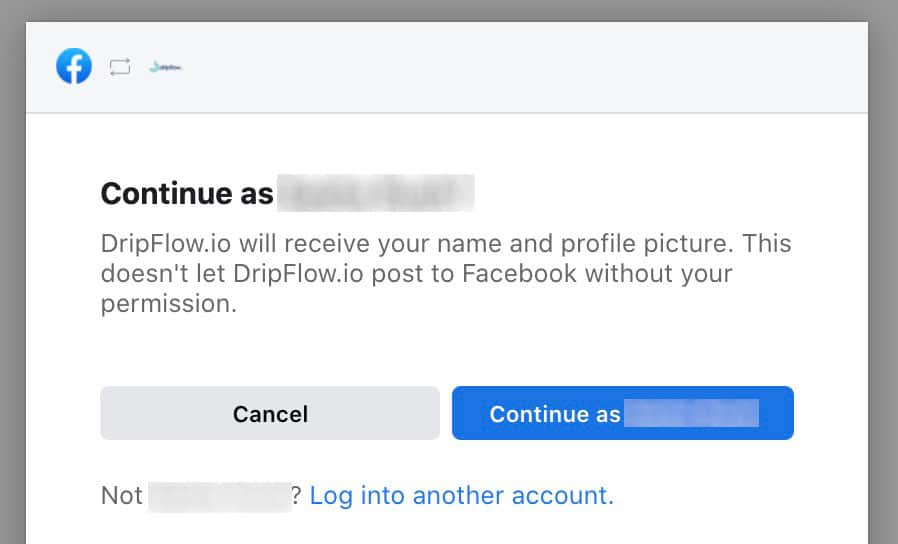
4. Click ‘Continue as…’

Facebook prompt to continue with your account when connecting Dripflow

5. Click ‘Business Integrations Settings’

This will open in a new tab in your browser.
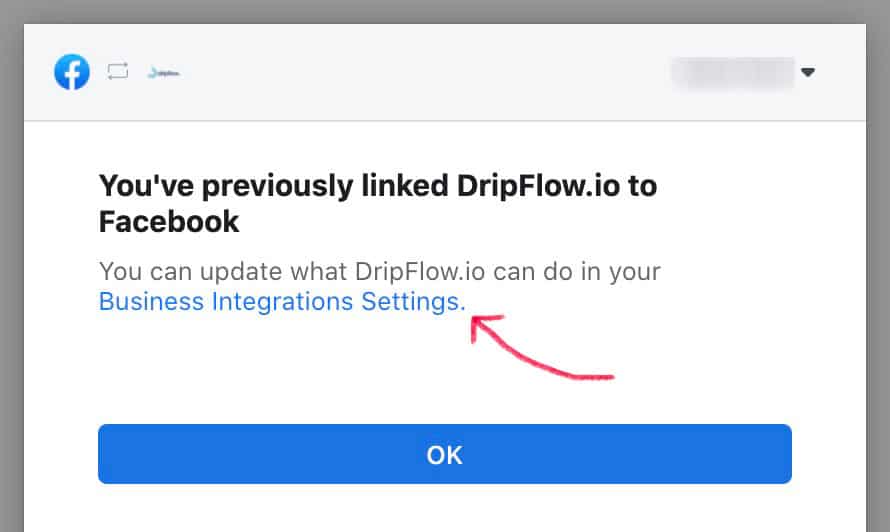
Facebook message saying DripFlow.io was previously linked, with a link to Business Integrations Settings

6. Click ‘View and Edit’ next to dripflow
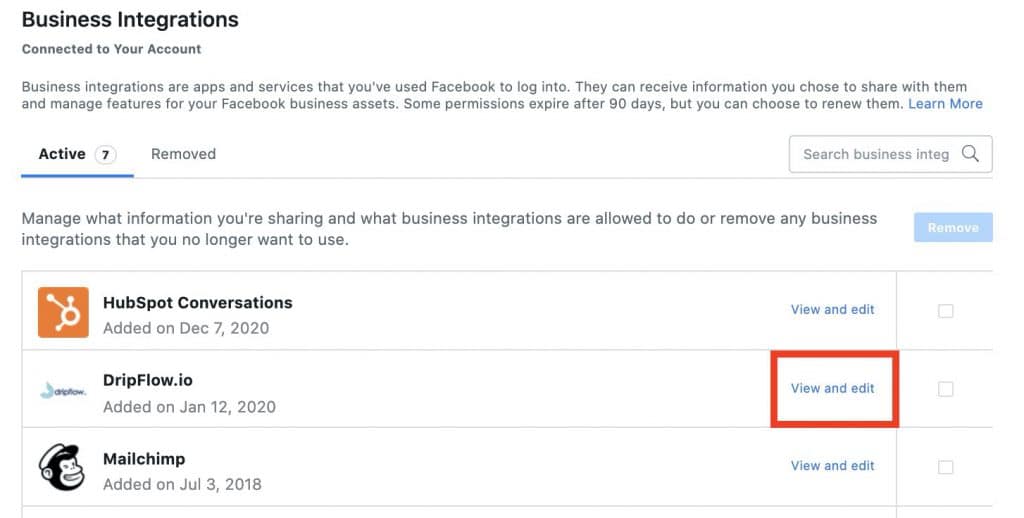
Facebook Business Integrations list with View and edit highlighted for DripFlow.io

7. Select all relevant options available

8. Click ‘Ok’

This will now return you to dripflow.
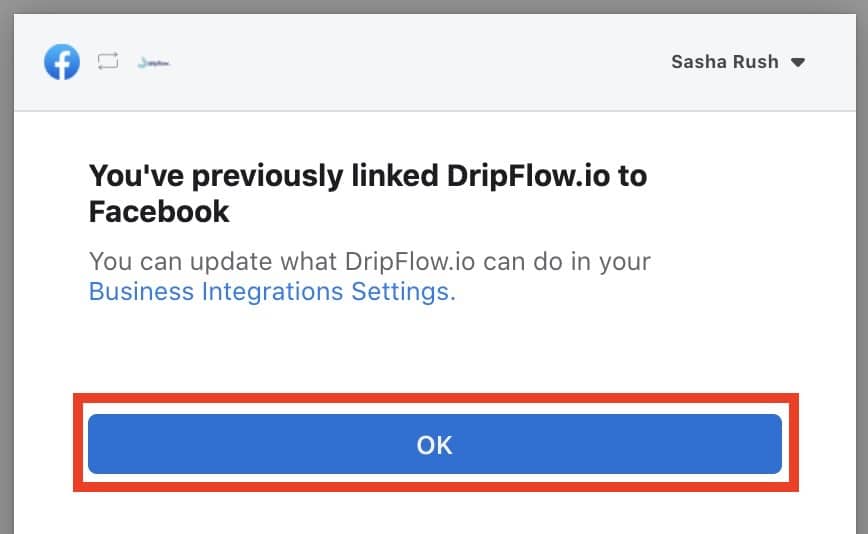
Facebook message saying DripFlow.io was previously linked, with the OK button highlighted

View Next Article: How to import & create review graphics