Overview
In this article you will get instructions on how to update your Facebook permissions in order to provide access to dripflow to your reviews / recommendation data. Note: Data can only be imported if you have reviews/recommendations on your page.
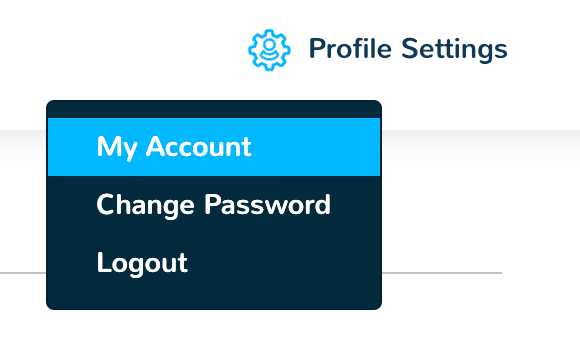
1. Click ‘Profile settings > My Account’ top right
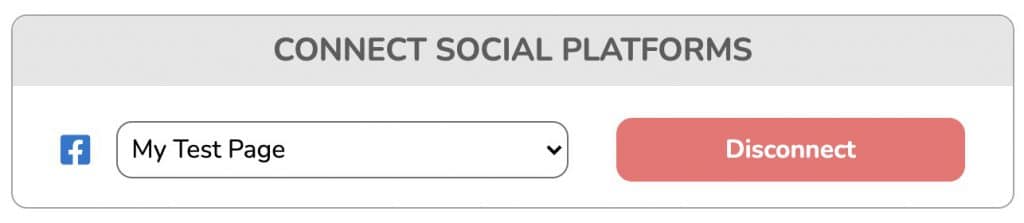
2. Click ‘Disconnect’
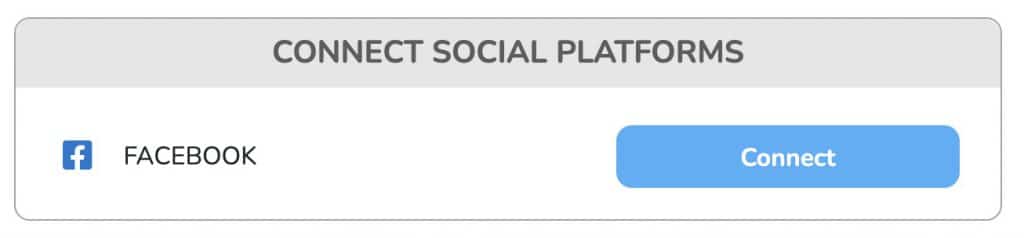
3. Click ‘Connect’
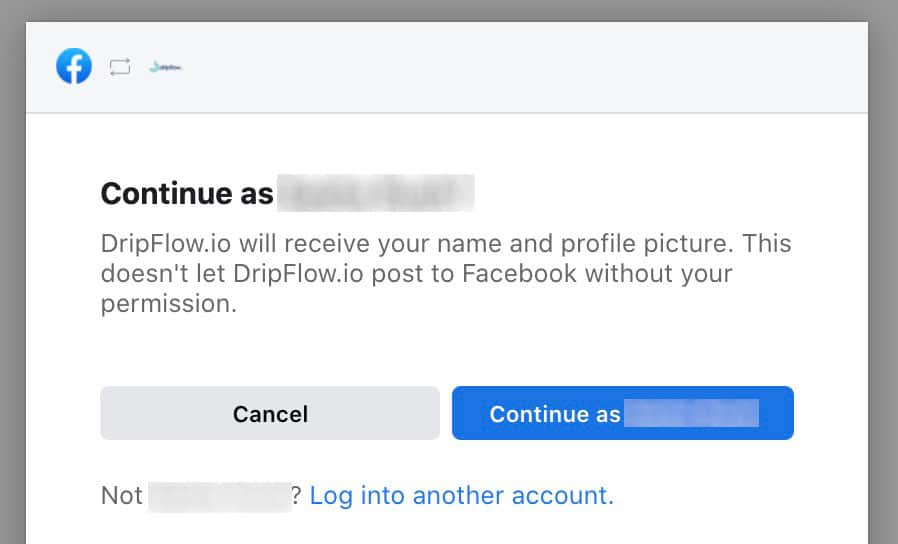
4. Click ‘Continue as…’
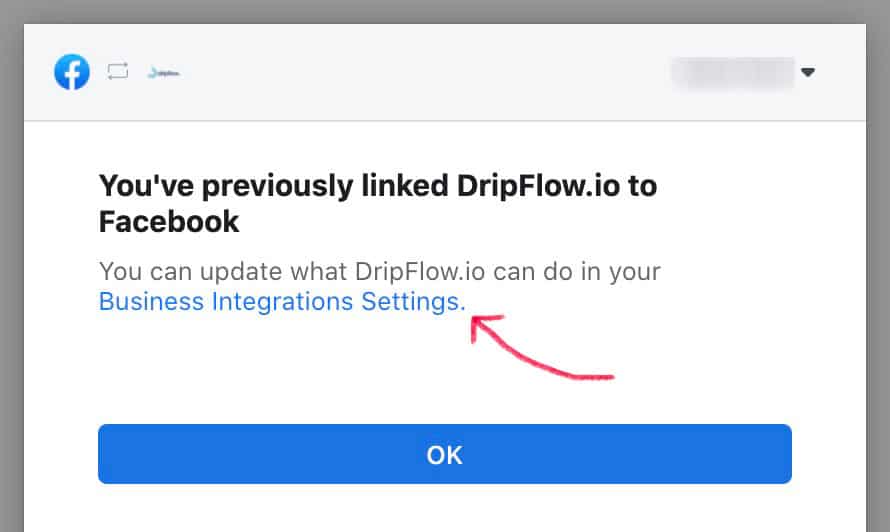
5. Click ‘Business Integrations Settings’
This will open in a new tab in your browser.
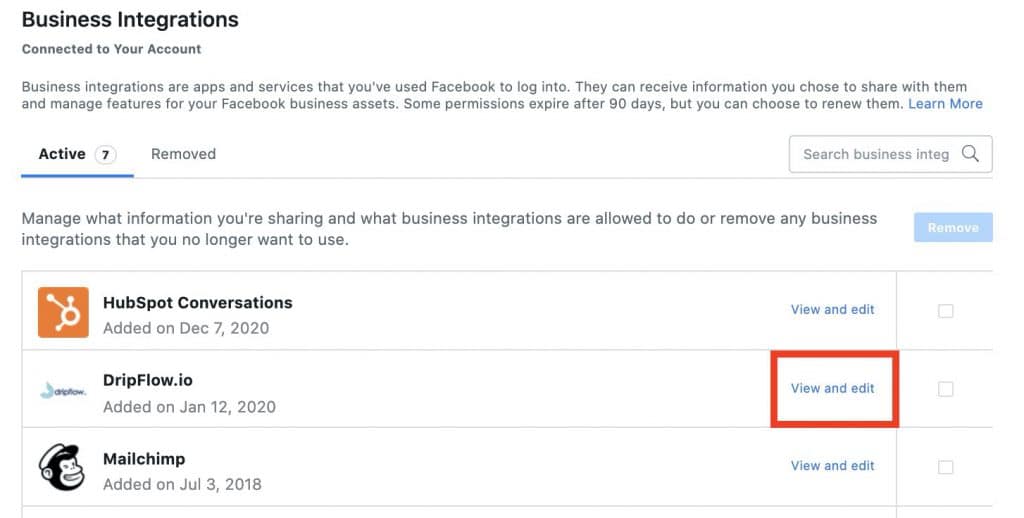
6. Click ‘View and Edit’ next to dripflow
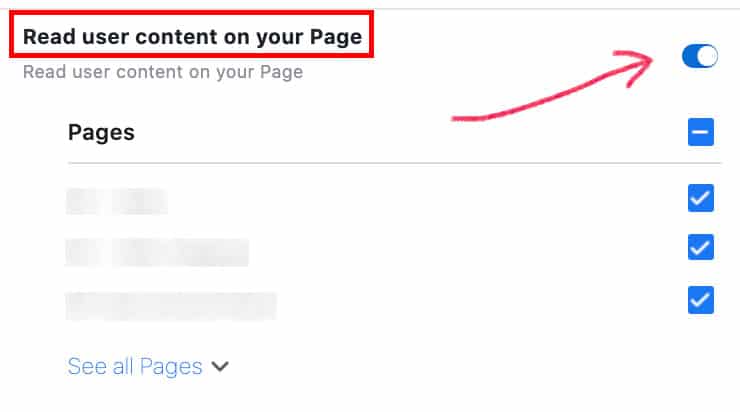
7. Scroll to find the permission ‘Read user content on your Page’ and turn on the switch.
Your Facebook page should be visible below already & be ticked but do double check this.
Once you’ve done this, close this tab to return to the previous tab.
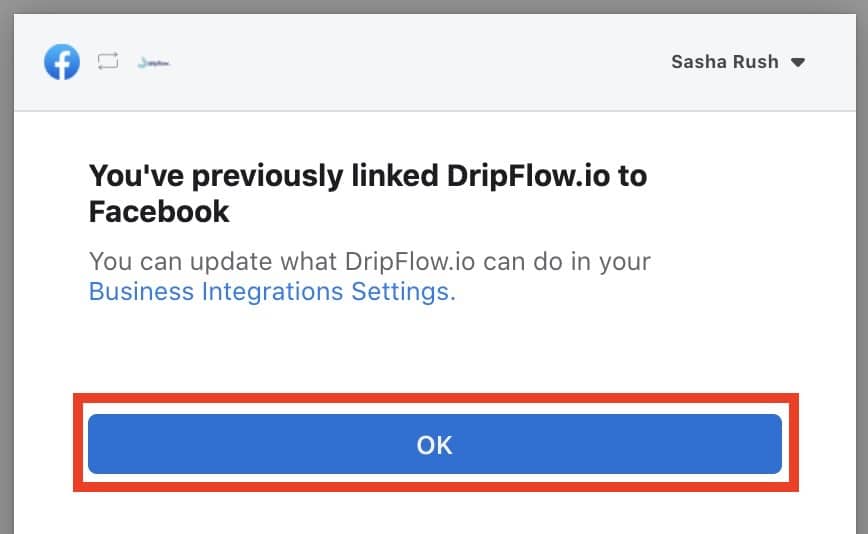
8. Click ‘Ok’
This will now return you to dripflow.
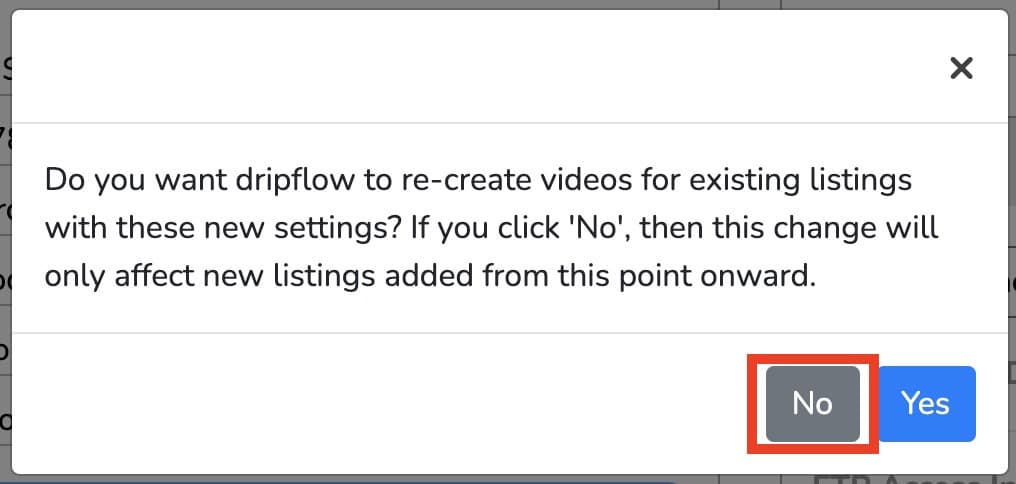
9. When you return back to dripflow, you will see this prompt, make sure to click ‘NO’.
You’re all set to start importing your review data. Check out the next article for further direction.